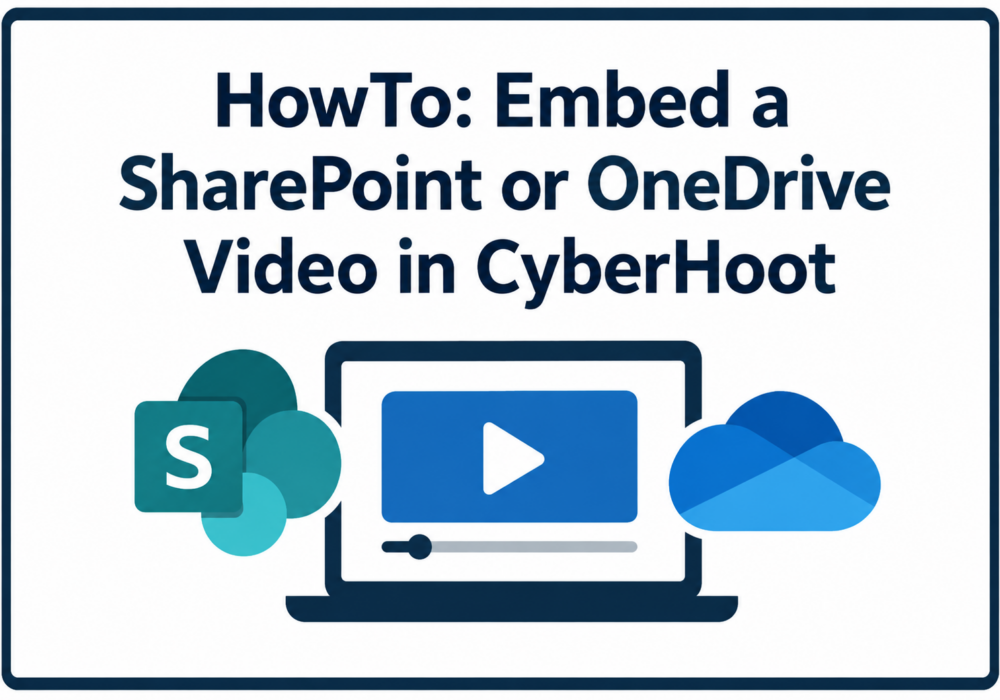
You can assign your own videos as CyberHoot training, including videos that already live in SharePoint, OneDrive, or Microsoft Stream. All CyberHoot needs is the video’s sharing link, and one sharing setting on the Microsoft side so your learners are allowed to watch it.
This is the same CustomHoots workflow you already use for YouTube and Vimeo videos, with one extra step in Microsoft 365.
Before uploading your video, make sure you have the following:
Upload the video the way you normally would, then open it so it plays in the Stream player.
Note: Store training videos in a SharePoint site library rather than in one person’s OneDrive. A video kept in personal OneDrive stops playing for everyone when that employee leaves and their account is deleted, which quietly breaks the training assignment months later.
This step is what lets your learners watch the video, so do not skip it.
Note: “People in [your company]” and “Specific people” links are not enough. Those require every learner to be signed into Microsoft 365 in the same browser, and anyone who is not gets an empty player instead of your video.
In the same Share menu, select Copy link. You will get an address like this:
https://contoso-my.sharepoint.com/:v:/g/personal/jsmith_contoso_com/IQAS8BzaQm7gRb9yuThat is the whole link. There is no embed code to copy and nothing to edit by hand.
CyberHoot recognises a SharePoint or OneDrive sharing link and plays the video file directly in the training page, rather than loading Microsoft’s player. That is what lets it play for your learners without a Microsoft sign-in.
Before you assign the video to anyone, watch it yourself through CyberHoot’s simulator. A simulation runs the training exactly as an employee sees it, without recording a completion or affecting anyone’s compliance score.
Note: If you are signed into Microsoft 365 while you test, a video with the wrong sharing setting can still play for you and fail for everyone else. Make sure to test in a browser where you are not logged into Microsoft365.
An Anyone with the link share means exactly that: the link is the key. Your learners do not need a Microsoft account, and neither does anyone else who gets hold of the address. Treat these videos as unlisted rather than private, the same way you would an unlisted YouTube video.
Older trainings may hold an embed address copied from Microsoft’s Embed code dialog, containing /_layouts/15/embed.aspx. Those keep working, but only for learners signed into your Microsoft 365 tenant with access to the file. Everyone else sees an empty player. To fix that, replace the embed address with the sharing link from step 3.
| What you see | What it means | What to do |
|---|---|---|
| Empty video area for staff, plays for you | The sharing link is not set to Anyone with the link | Redo step 2, then paste a freshly copied link into the training |
| Empty video area for everyone | The link is an embed address, or the sharing link was edited by hand | Copy the link again with Share > Copy link and paste it unchanged |
| “This item might not exist or is no longer available” | The video was moved, renamed, or deleted, or the sharing link was removed | Reshare the video and paste the new link into the training |
| Video plays but will not play full screen or download | Expected. The player offers playback controls only | Nothing to do |
| Video plays, but the Mark Completed button never appears | Unrelated to the video. The learner has not reached the end of the assignment | Ask them to scroll down and finish the assignment steps |
Discover and share the latest cybersecurity trends, tips and best practices – alongside new threats to watch out for.
Author: Katie Boquetti | Editorial: Craig Taylor Editorial by Craig Taylor: Even before Claude Code made...
Read more
Author: Katie Boquetti | Editorial: Craig Taylor Editorial by Craig Taylor: We've known for a while here...
Read more
Author: Katie Boquetti | Editorial: Craig Taylor Editorial by Craig Taylor: A CAPTCHA should test whether...
Read moreGet sharper eyes on human risks, with the positive approach that beats traditional phish testing.