Updated September 2026: adds Simulation URLs to allow, configuration verification, and troubleshooting steps.
Allow-Listing X-Headers is necessary in order for CyberHoot to send simulated phishing emails to bypass your mail filter. We recommend whitelisting by IP address or hostname but depending on your system setup, allow-listing by headers may be the most fitting way to ensure phishing test emails are delivered to your user’s inboxes. Follow the instructions below to allow-list our headers:
1. Bypassing Clutter and Spam Filtering by Email Header (Exchange 2013, 2016, and M365)
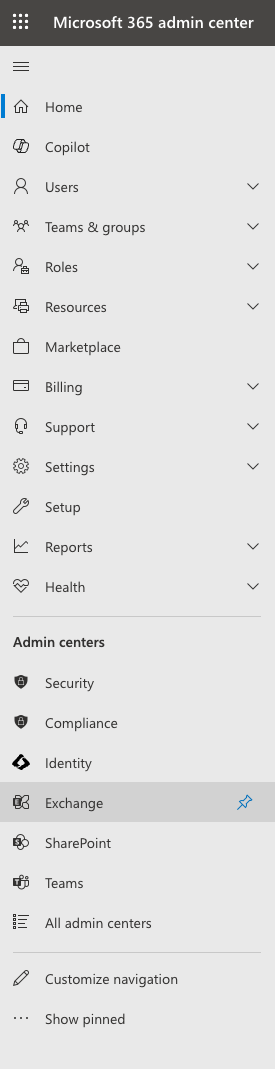
Log into your mail server admin portal and select Exchange under Admin center.
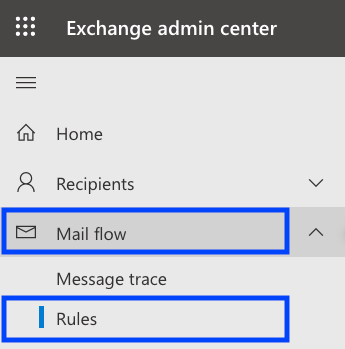
Click Mail flow
Click Rules
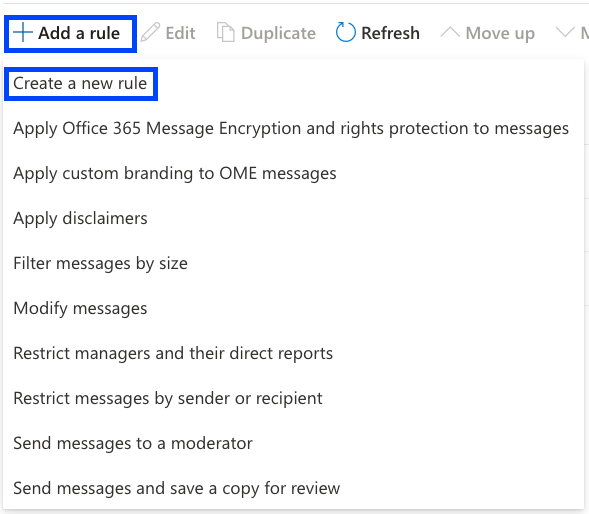
Click Add a rule
In the new rule window, click on Create a new rule
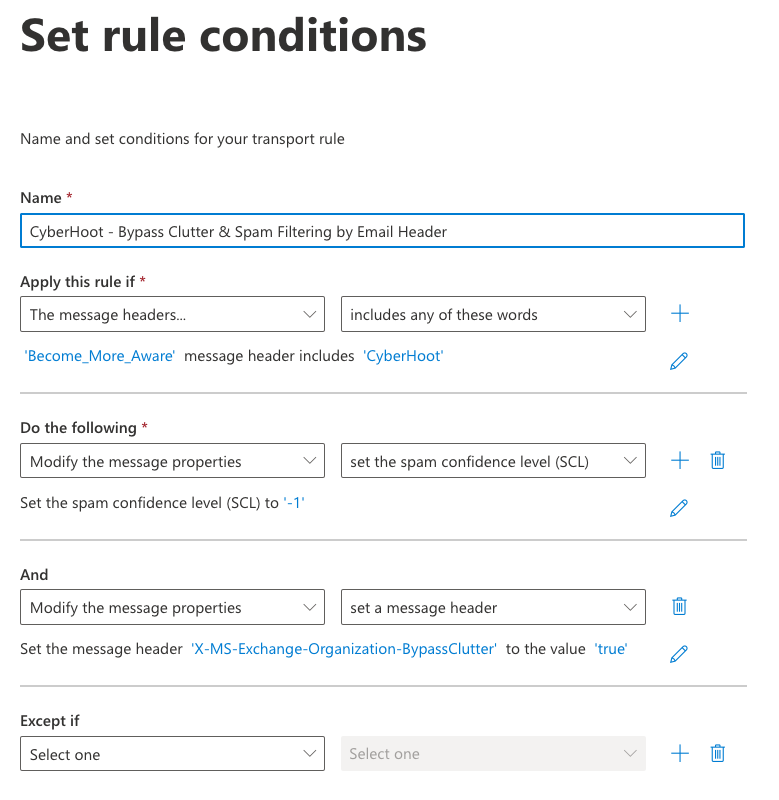
Give the rule a name, such as “CyberHoot – Bypass Clutter & Spam Filtering by Email Header”.
From the Apply this rule if… drop-down menu, select The message headers… then includes any of these words.
Under those boxes, you will see *Enter text… and *Enter words…
Click *Enter text… and type in the header name: Become_More_Aware and click on save.
Click *Enter words … and type in CyberHoot and click the Add button and Save button.
Next, under Do the following… ensure that this field on the left is set to Modify the message properties and set the spam confidence level (SCL) is set on the right side.
Add a second action under the Do the following, by clicking the + sign (add action) button.
From the drop-down menu, select Modify the message properties on the left side and set a message header on the right side
Click the first *Enter text…. and type X-MS-Exchange-Organization-BypassClutter and hit save, then click the second *Enter text… and type true and hit save.
Review all settings to make sure they are correct. It should look like this:
Click on Next.As a best practice, we recommend leaving the other options at their default settings.
Click on Finish.
2. Bypassing the Junk Folder (M365 mail servers ONLY)
This rule allows only simulated phishing emails from CyberHoot to bypass the Junk folder so that your users receive simulated phishing emails in their inboxes.
Open the Exchange admin center (admin.exchange.microsoft.com).
Click Mail flow
Click Rules
Click Add a rule, then Create a new rule.
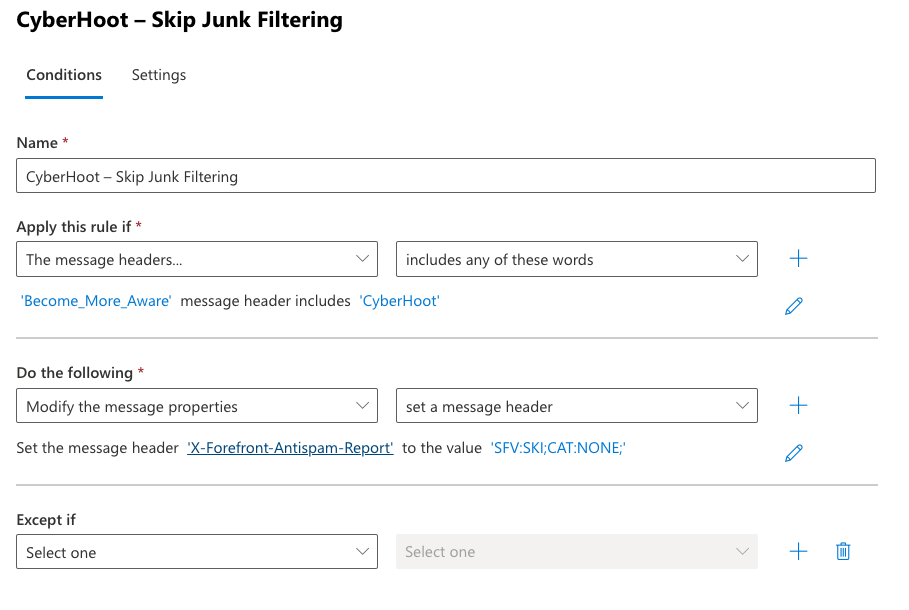
Give the rule a name, such as “CyberHoot – Skip Junk Filtering”.
From the Apply this rule if… drop down menu, select The message headers… then include any of these words.
Click Enter text…, type the header name Become_More_Aware and click Save.
Click Enter words…, type CyberHoot, click Add and then Save.
Under Do the following…, select Modify the message properties on the left and set a message header on the right.
Click the first Enter text… and type X-Forefront-Antispam-Report (case sensitive), then click Save. Click the second Enter text…, enter SFV:SKI;CAT:NONE; (case sensitive) and click Save.
Click Next. On the Set rule settings page, leave the other values at their defaults and click Next.
Set the priority to directly follow the rule you created in Section 1.
Review all settings to make sure they are correct.
Make sure all options are filled out correctly.
Click Save Once you have completed this setup please allow time for the new rules to generate. Then, set up a test phishing campaign for yourself or a small group to test out your new whitelisting rule.
3. Setting Advanced Delivery in Microsoft Defender to Allow Phishing Simulations
This configures the sender domains, IP addresses, and simulation URLs used by CyberHoot so that simulation emails are delivered unfiltered and their links are not blocked or detonated when clicked. You need the Security Administrator role in Microsoft Defender (or Organization Management in Exchange Online) to make these changes.
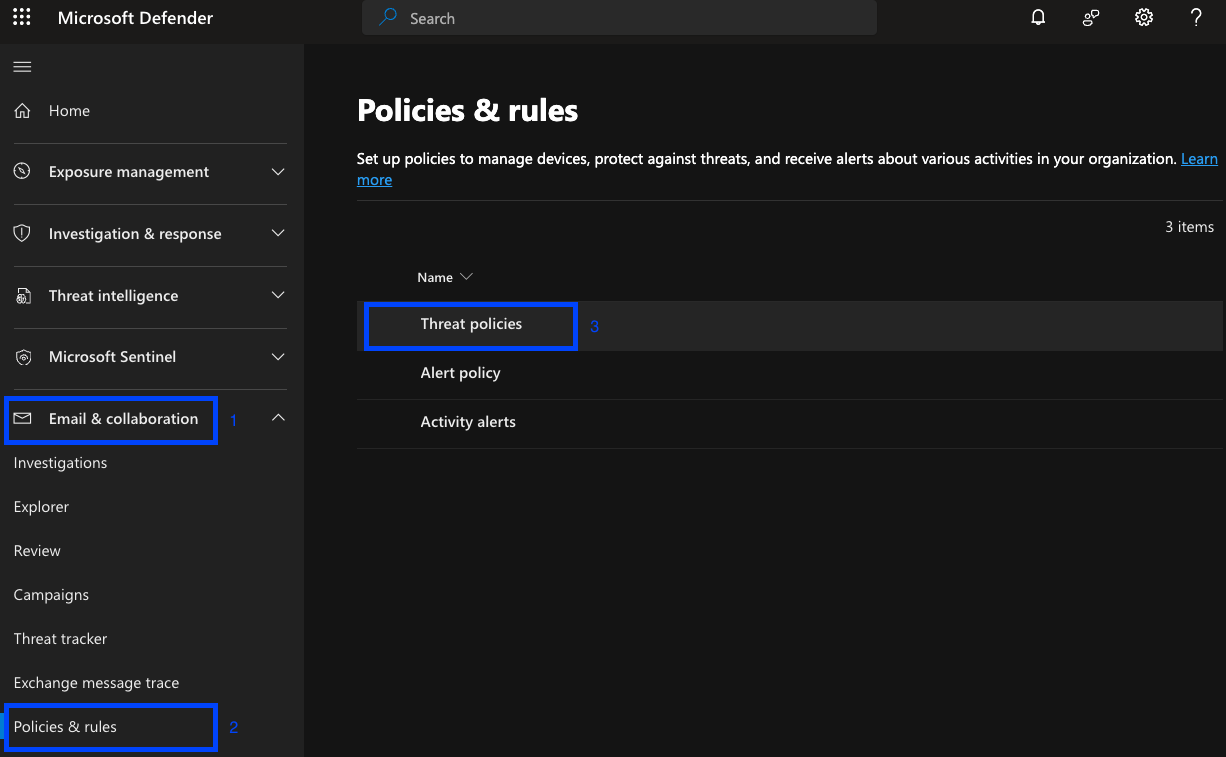
On the left side, click Show Navigation (if navigation is closed) then select Email & collaboration, then Policies & rules.
Click Threat policies.
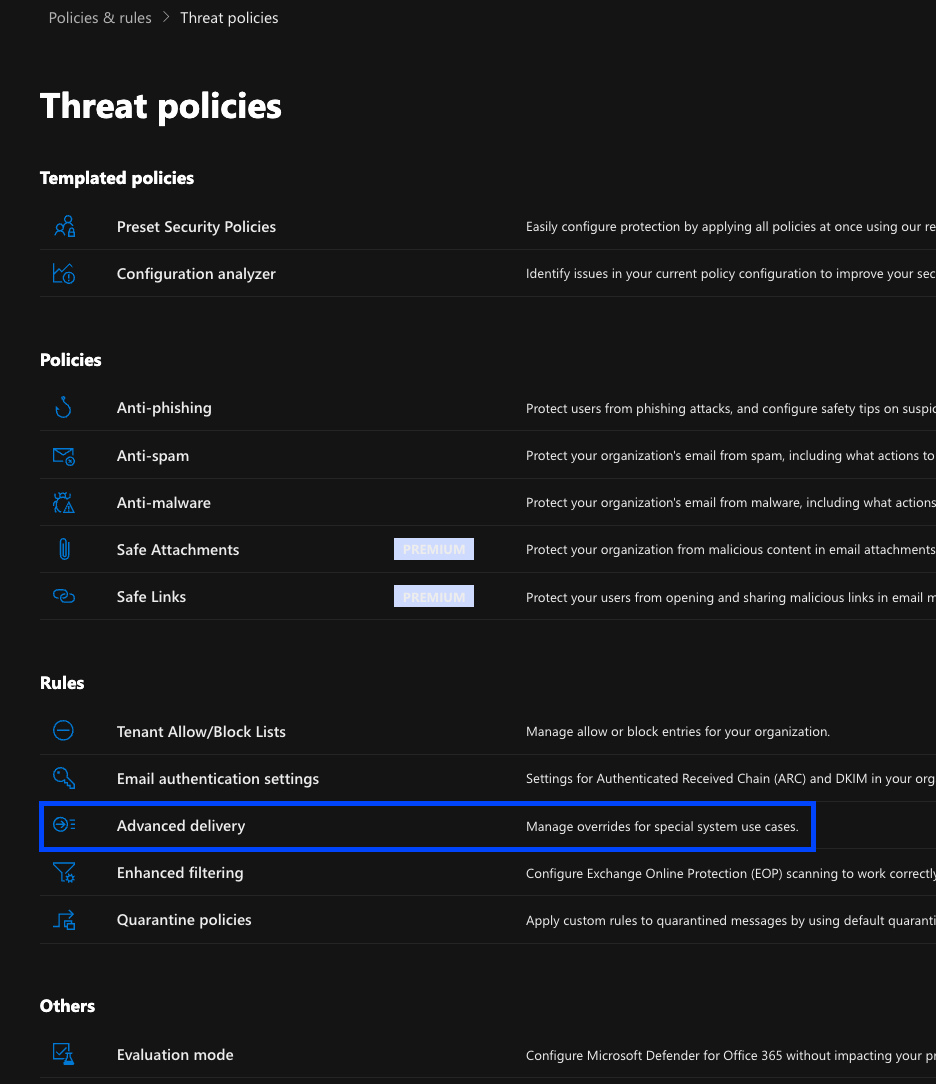
Click on Advanced delivery.
Under Advanced delivery, click on Phishing Simulations.
Click Edit. If no phishing simulations are configured yet, click Add instead.
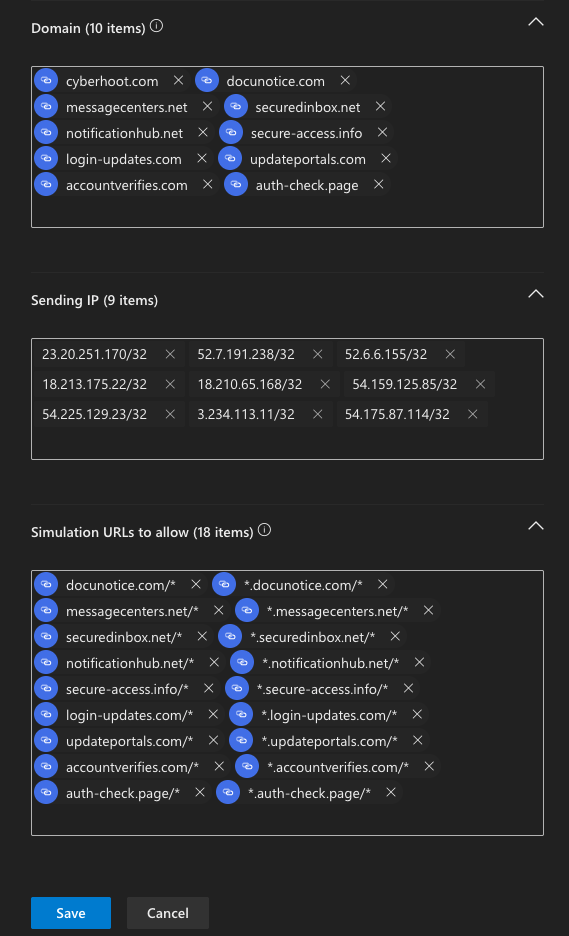
Under Domain, enter each CyberHoot phishing domain from the reference table at the end of this guide, pressing Enter after each one.
Under Sending IP, enter each CyberHoot IP address from the reference table, pressing Enter after each one. The load balancer address 54.156.140.113 does not need to be added.
Under Simulation URLs to allow, enter each phishing domain in both of the following formats, pressing Enter after each entry: docunotice.com/* and *.docunotice.com/*. Repeat for all nine domains (18 entries total). The trailing /* is required; entries without it may not match.
Save your changes, then click Close.
Why Simulation URLs to allow? Microsoft automatically allows URLs in the email body when the sending domain and IP match the Advanced delivery policy. However, if a message reaches Microsoft 365 through a gateway, is signed with a different DKIM domain, or a link redirects to another domain, Safe Links can still block or detonate the link at time of click. Adding the URLs explicitly prevents this and is also required for any simulation delivered through Teams or Office apps.
Note: Allow up to one hour for the new policy to take effect before sending a test campaign.
4. Verify the Configuration
Before launching a full campaign, confirm the policy is working.
In CyberHoot, send a test phishing campaign to yourself or a small pilot group.
Open the test email, click the link, and confirm the landing page loads without a Safe Links warning or block page.
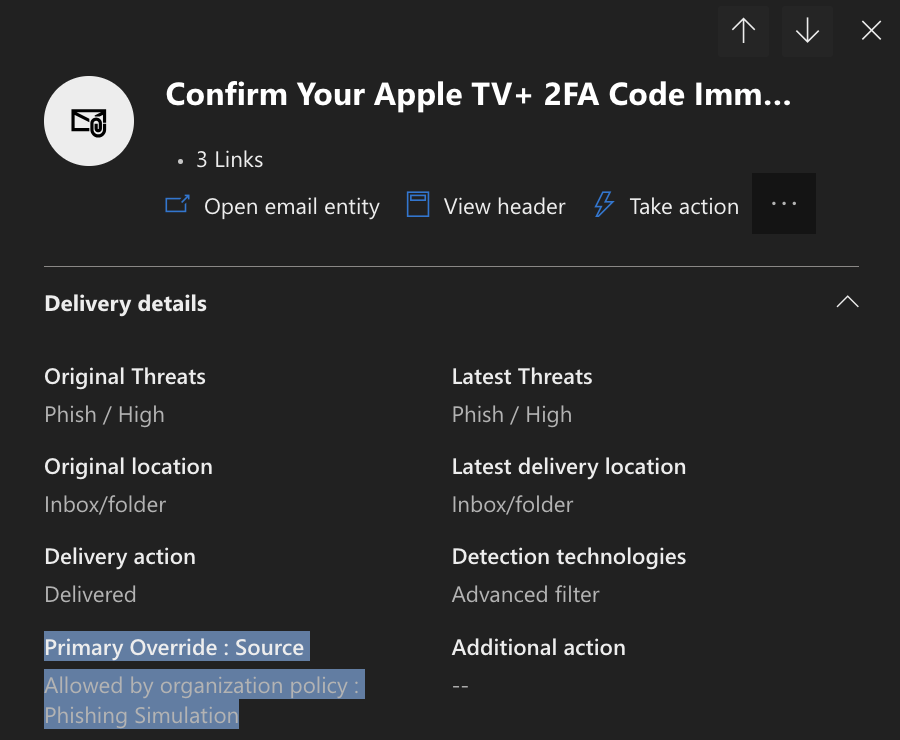
In Microsoft Defender, go to Email & collaboration > Explorer or (Real time detections), search for the test message, and open it.
Confirm the System overrides field shows the message was allowed by organization policy as a Phishing simulation.
5. Troubleshooting: Simulation Still Blocked or Detonated
If the test message is still quarantined, or its link is blocked or detonated, work through the following checks.
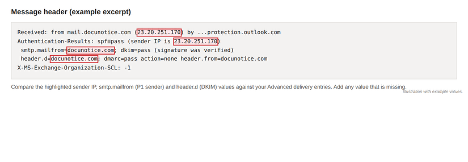
Open the delivered (or quarantined) message and view its full message header.
Find the sender IP in the Received and Authentication-Results lines, the P1 sender in smtp.mailfrom, and the DKIM signing domain in header.d.
Compare those values with your Advanced delivery entries. Advanced delivery only applies when the Domain matches either the P1 sender or the DKIM domain and the Sending IP matches. Add any value that is missing.
If the link redirects through a tracking or intermediate domain before reaching the landing page, add that domain to Simulation URLs to allow in both formats.
If your domain’s MX record points to a third party email gateway (for example Mimecast, Proofpoint, or Barracuda) before Microsoft 365, allow list CyberHoot in that gateway using the related CyberHoot HowTo article, and enable Enhanced Filtering for Connectors on the inbound connector so Microsoft 365 can see the original sending IP.
If the issue persists, contact support@cyberhoot.com and include the full message header.
Reference: CyberHoot Phishing Domains, IPs, and Simulation URLs
Always confirm current values against CyberHoot’s Email Relay IP Addresses & Domains article before configuring, as the list may be updated.