This HowTo article explains how to configure Avanan’s Allow Listing rules to allow Attack Phishing tests to reach end users in Microsoft M365 environments.
Warning: CyberHoot supports fake email Attack-Phishing for customers. Please keep in mind this approach uses negative reinforcement to reduce click rates in employees. To be successful, always pair with Positive Reinforcement, educational, and realistic HootPhish phishing simulations for the best Affect and Effect on end users.
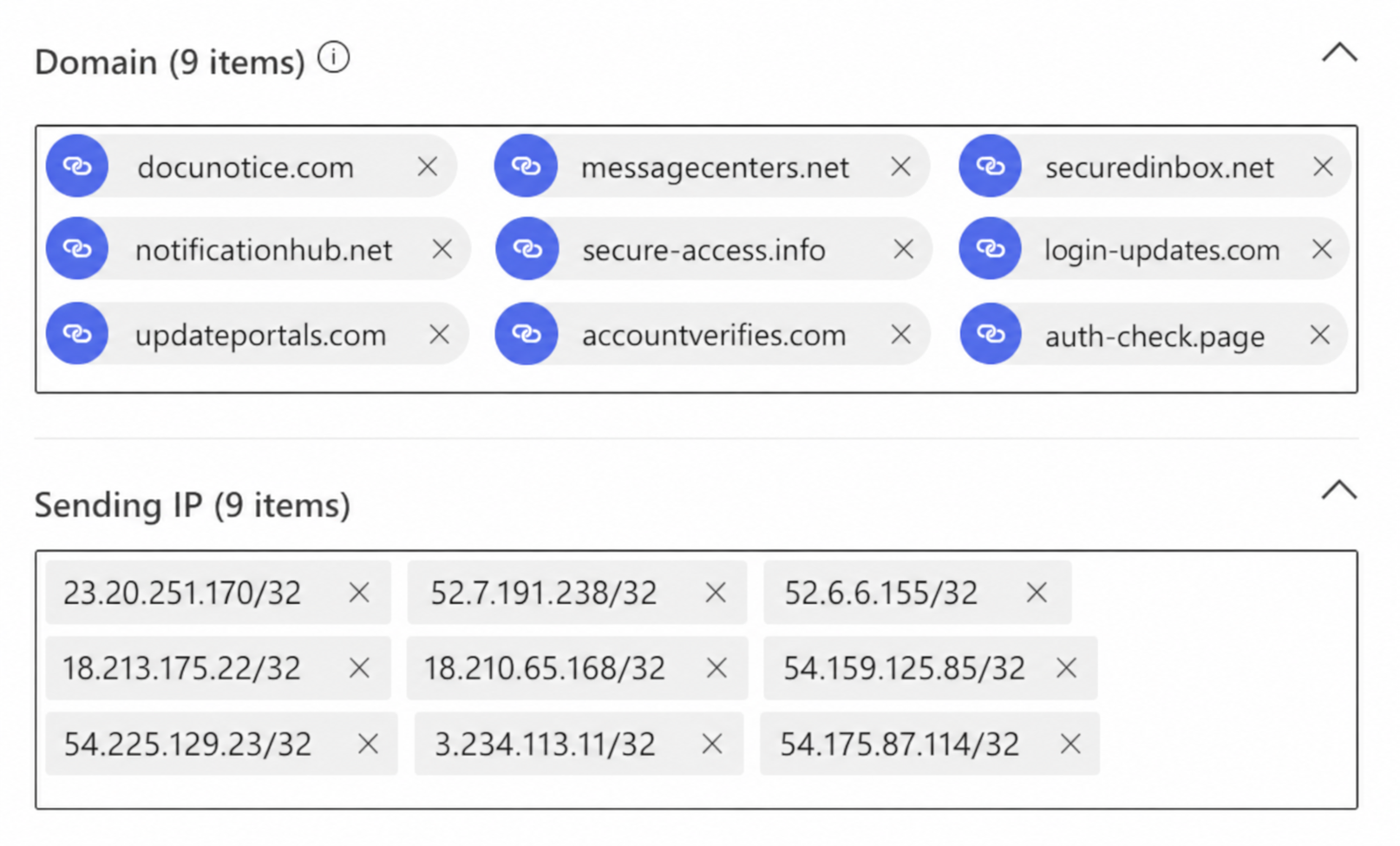
1. Access the Microsoft Security Dashboard for the client (can be done via CIPP), and follow the steps at this link https://cyberhoot.com/howto/howto-whitelist-by-x-header-in-exchange-2013-2016-or-microsoft-365/ but use the IP’s and domains below. Please Note: You do NOT need the “url” section mentioned at the link
IP Address’s to Allow:
23.20.251.170/32
52.7.191.238/32
52.6.6.155/32
18.213.175.22/32
18.210.65.168/32
54.159.125.85/32
54.225.129.23/32
3.234.113.11/32
54.175.87.114/32
Domain Names to Allow:
docunotice.com
messagecenters.net
securedinbox.net
notificationhub.net
secure-access.info
login-updates.com
updateportals.com
accountverifies.com
auth-check.page
For a detailed view of the Avanan screens, see the images on the next page.

2. Connection Filter Allow
Next you will want to add these IP’s instead (always leave Avanan IPs)
23.20.251.170/32
52.7.191.238/32
52.6.6.155/32
18.213.175.22/32
18.210.65.168/32
54.159.125.85/32
54.225.129.23/32
3.234.113.11/32
54.175.87.114/32
YOU HAVE TO CHANGE THE VALUE TO MATCH THE AVANAN PORTAL IP – e.g. tenantname becomes <shortname> for <Tenant Full Name> — set message header ‘X-CLOUD-SEC-AV-INFO’ with the value ‘tenantname,google_mail,inline’
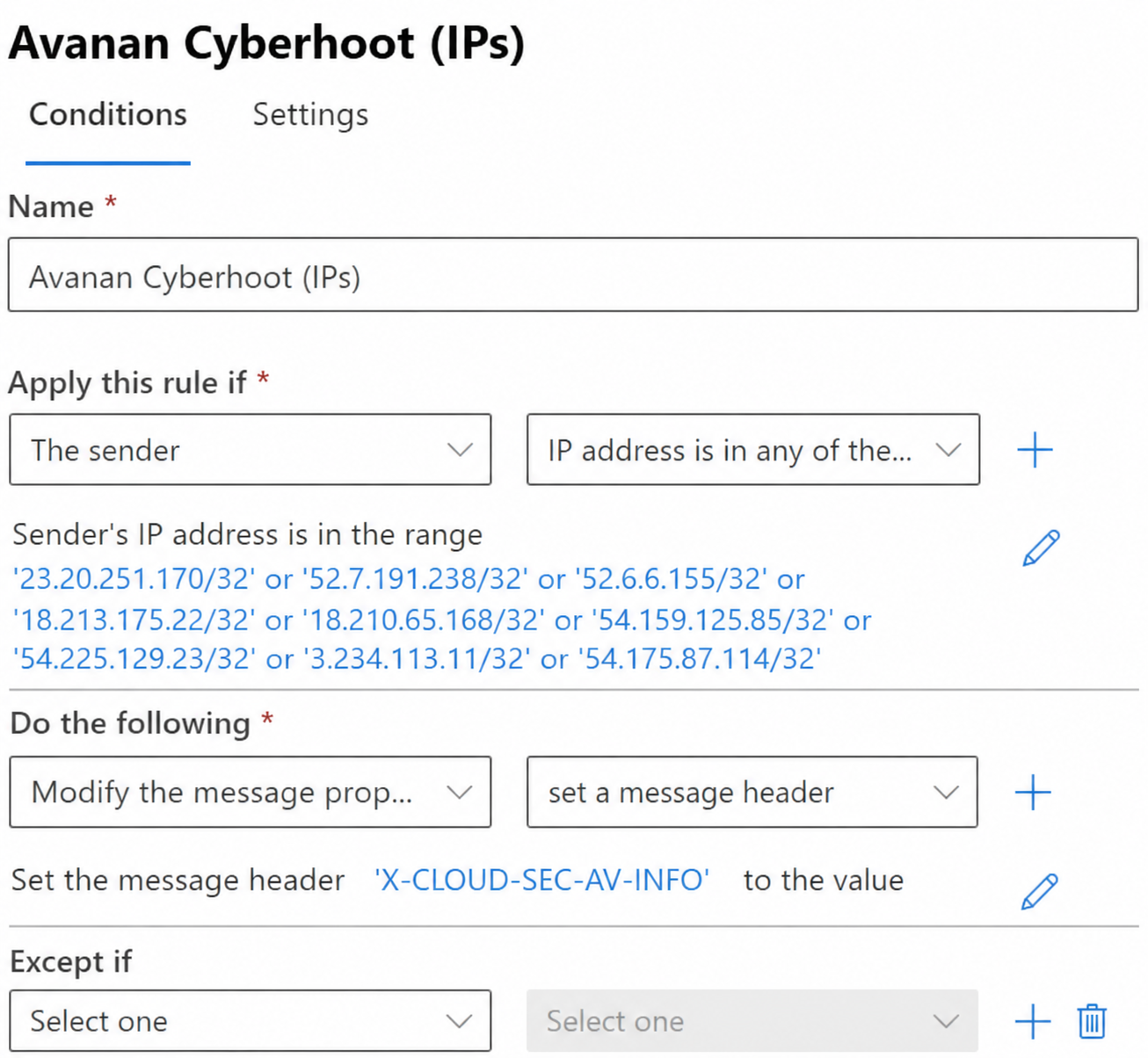
3. Enable and Stop Processing more Rules as shown below.

4. Click on Rule
5. Edit Settings
6. Change Priority to 0
7. Save. The rule should now be at the top
8. Click on rule
9. “enable or disable rule” slider to enabled. it will now show enabled
Sign out of the m365 account in your browser (you can go to admin.microsoft.com and sign out)
Discover and share the latest cybersecurity trends, tips and best practices – alongside new threats to watch out for.

Most phishing tests lie to your employees. This one says hello first! HootPhish tells people up front: this is...
Read more
Severity: CRITICAL (CVSS 9.2) | Issued: October 22, 2026 On October 21, two critical flaws in PHP,...
Read more
Author: Katie Boquetti | Editorial: Craig Taylor Editorial by Craig Taylor: Even before Claude Code made...
Read moreGet sharper eyes on human risks, with the positive approach that beats traditional phish testing.