This HowTo article explains how to configure Allow Listing rules in to allow Attack Phishing tests to reach end users using BitDefender.
Warning: CyberHoot supports fake email Attack-Phishing for customers. Please keep in mind this approach uses negative reinforcement to reduce click rates in employees. To be successful, always pair with Positive Reinforcement, educational, and realistic HootPhish phishing simulations for the best Affect and Effect on end users.
1.) On the left hand side, scroll down to and click Policies
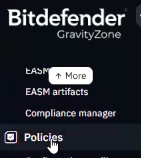
2.) Select the policy you wish to make a change to you, or you can create a new policy and name it “CyberHoot” for example.
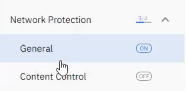
3.) Select Network Protection > General
4.) Scroll down until you see Exclusions
5.) To Allow-List Domain Names:
Select Exclusion Type as “URL”, enter the domain name under Excluded Item, and optionally add a Description (for example, “CyberHoot”) to help you quickly identify the purpose of that domain.

6.) To Allow-List IP Addresses:
Select Exclusion Type as “IP/mask”, enter the IP address under Excluded Item, and optionally add a Description (for example, “CyberHoot”) to help you quickly identify the purpose of that domain.
For a list of CyberHoot’s DNS Domain names and IP Address, visit this link: https://cyberhoot.com/howto/cyberhoots-email-ip-addresses-and-hostnames/
Discover and share the latest cybersecurity trends, tips and best practices – alongside new threats to watch out for.

And yes, Google's Gemini AI had no idea it was working for the bad guys. Malware has always followed a script....
Read more
Ransomware groups are not breaking in organizations the same way they did five years ago. The entry methods have...
Read more
If a Chrome extension promises to remove security pop-ups and generate MFA codes, that should make you...
Read moreGet sharper eyes on human risks, with the positive approach that beats traditional phish testing.