This article provides steps on how to add a new governance policy into CyberHoot.
Log in and go to the Dashboard.
Click either:
The Policies box, or
The Policies tab in the top menu.
Click Add Policy.
Upload your PDF file.
Fill out the required fields:
Policy name
Start date
Auto-renew date (optional, with a 60-day reminder)
Acceptance window
Reminders
Enable a quiz (optional)
Choose the target group.
Click Create.
Go to the Training Library.
Find a policy you want to use.
Click Download to get the policy in Microsoft Word format.
Open the Word document you just downloaded.
Customize the policy to match your organization’s needs.
Save the file as a PDF (not as a Word doc).
Return to Add Policy.
Upload the customized PDF.
Fill out all required settings (start date, acceptance window, auto-renew, etc.).
Click Create.
Discover and share the latest cybersecurity trends, tips and best practices – alongside new threats to watch out for.

One Forgotten Password, Almost a Catastrophe A single Windows machine at a retail store location had a cached...
Read more
You now have five important reasons to start a router security conversation with your small business clients this...
Read more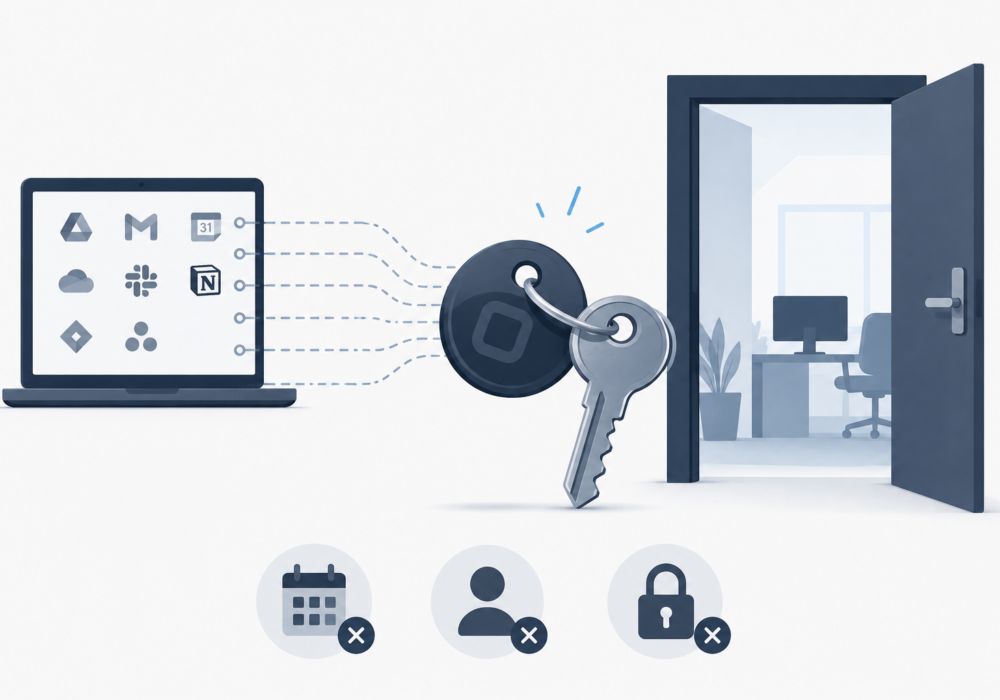
OAuth tokens don't expire when employees leave, passwords change, or apps go rogue. Your security program needs...
Read moreGet sharper eyes on human risks, with the positive approach that beats traditional phish testing.